
To guarantee your dash cam’s timestamps are accurate and prevent DST from ruining your evidence, check that GPS calibration and automatic time zone updates are enabled in your settings. Keep your firmware current to support automatic adjustments and correct time zone detection. Test your setup after updates or crossing regions to confirm accuracy. Properly configured systems help avoid confusion and maintain reliable footage. Continue exploring to learn how to optimize your dash cam’s time zone settings effectively.
Key Takeaways
- Enable GPS auto-calibration to automatically adjust for local time zones and daylight saving time changes.
- Regularly update your dash cam’s firmware to improve GPS accuracy and time zone detection features.
- Verify that automatic DST adjustments are enabled in your dash cam’s settings for correct timestamps.
- Conduct test recordings after any firmware update or DST switch to ensure accurate timestamping.
- Manually set or confirm the correct time zone if automatic detection is unavailable or unreliable.

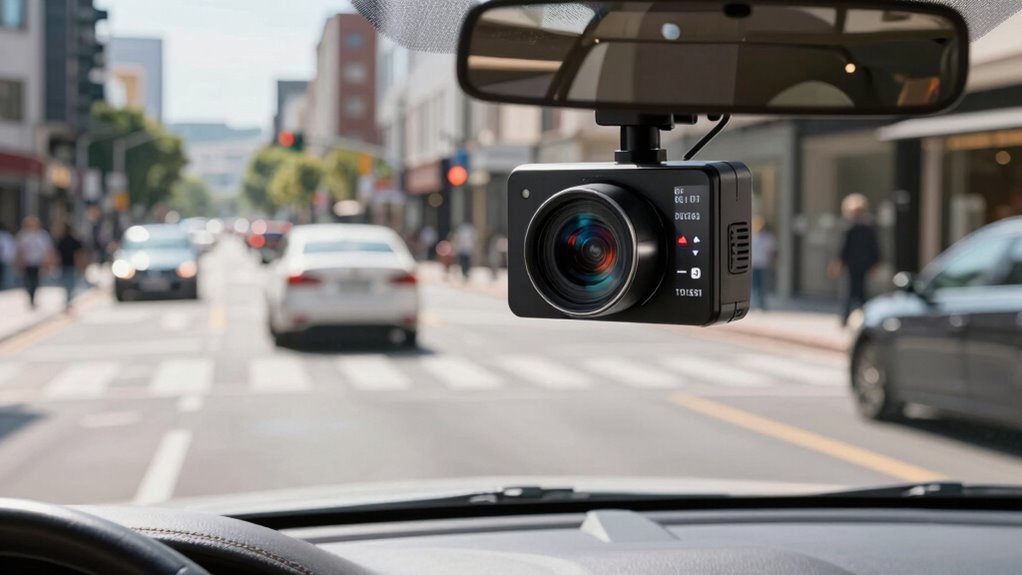
Setting the correct time zone on your dash cam is essential for accurate timestamping of your recordings. If your device isn’t set to the right zone, crucial evidence could be misinterpreted or rendered useless. To ensure your footage reflects the real time, you need to take a few key steps. First, check your dash cam’s settings menu to locate the time zone option. Many models automatically sync with GPS signals, so enabling GPS calibration is vital. When GPS calibration is accurate, your dash cam can automatically adjust for local time zones, including daylight saving time changes, without you needing to manually intervene each time. This feature helps prevent confusion during incidents recorded across different regions or when daylight saving time (DST) switches occur. Proper time zone setup is crucial because it ensures your recordings are always accurately timestamped, no matter where you drive. However, relying solely on GPS calibration isn’t enough if your device’s firmware isn’t up-to-date. Firmware updates are critical because manufacturers frequently release patches to improve GPS accuracy, fix bugs, and add features like automatic time zone adjustments. Updating your dash cam’s firmware ensures it can properly interpret GPS signals, which is essential for correct time zone detection. To do this, visit the manufacturer’s website or use their dedicated app to download the latest firmware. Follow their instructions carefully to install updates—this process can vary depending on your model but generally involves transferring files via USB or Wi-Fi. Once your firmware is current and GPS calibration is active, your dash cam should automatically detect the correct local time zone, including adjustments for daylight saving time. This means you don’t have to manually change settings twice a year or worry about recordings timestamped incorrectly. It’s a good idea to verify your setup after updates by recording a short test video in different locations or after DST changes to confirm the timestamps are accurate. If your device offers manual time zone adjustments, double-check those settings to make sure they match your current location.
Frequently Asked Questions
Can I Change the Time Zone After Recording Footage?
Yes, you can usually change the time zone after recording footage to improve recording accuracy. Most dash cams allow you to access settings and perform a time zone adjustment in the menu. By doing this, your footage’s timestamps will reflect the correct local time, helping you avoid confusion and ensuring your evidence is accurate and reliable. Just check your dash cam’s user manual for specific instructions on adjusting the time zone.
Does Daylight Saving Time Automatically Update on All Dash Cam Models?
Not all dash cam models automatically update for daylight saving time. Some have automatic updates, so they adjust the clock when DST begins or ends, while others require manual adjustments. To avoid missing or confusing footage timestamps, check your dash cam’s settings. If it doesn’t support automatic updates, make sure to modify the time manually before recording, especially during DST changes. This ensures your evidence stays accurate and reliable.
How Do I Verify the Correct Time Zone in Recorded Videos?
Think of verifying your video timestamp as checking the compass before a journey. To guarantee accuracy, review the recorded footage’s timestamp details, often found in video metadata or playback settings. Cross-reference the timestamp with your device’s current time zone settings, especially after daylight saving time changes. This way, you confirm timestamp verification and video timestamp accuracy, so your evidence remains reliable and unambiguous in any situation.
Are There Any Risks of Data Loss When Adjusting Time Zones?
Adjusting time zones on your dash cam generally doesn’t risk data loss if you guarantee proper time synchronization beforehand. Make sure your firmware is up to date, as updates often improve time zone handling and reduce errors. Always back up your videos before making any changes, and follow manufacturer instructions carefully. Properly managing firmware updates and time sync helps keep your footage accurate and prevents issues caused by incorrect timestamps.
What Should I Do if My Dash Cam’s Time Is Consistently Wrong?
They say, “A stitch in time saves nine,” so start by performing a quick time correction on your dash cam. Check if your device needs a firmware update—many issues are fixed through updates. If the time remains off, reset the time zone settings manually, ensuring they match your location. Regularly updating firmware and double-checking settings keeps your evidence accurate and reliable, preventing future headaches.
Conclusion
Now that you’ve set your dash cam’s time zone correctly, you’re more prepared than ever. It’s funny how a small detail like this can prevent headaches later—like catching that unexpected incident or proving your innocence. Sometimes, life’s little coincidences remind us how vital proper setup really is. So, take a moment now to double-check your settings; because when you need your footage most, you’ll be glad you did.