

To stop corrupting dash cam footage, make sure you regularly format your SD card every 2-4 weeks using the proper method for your device. Always back up files first, and use a full format rather than quick format to prevent fragmentation and errors. Avoid removing or inserting the card during recording, and choose high-quality, high-endurance SD cards rated for continuous use. Keeping these routines in mind can help maintain smooth recordings and prevent errors—stay tuned to learn more.
Key Takeaways
- Regularly format your SD card every 2-4 weeks to prevent fragmentation and data corruption.
- Always backup footage before formatting to avoid accidental data loss.
- Use the correct file system (FAT32 or exFAT) suitable for your SD card size during formatting.
- Avoid removing or inserting the SD card during active recording to prevent file errors.
- Choose high-endurance SD cards with fast write speeds and proper compatibility for reliable recording.

【5 Yrs Free Data Recovery】【Dash Cam】 GIGASTONE 256GB Micro SD Card, TLC High Endurance Pro, Speed Up to 100MB/s, Compatible with REDTIGER Rove VIOFO VANTRUE PRUVEEO ARIFAYZ, MicroSDXC UHS-I A1 V30 U3
- High-Speed Data Transfer: Read/Write up to 100/60 MB/s
- Versatile Compatibility: For Laptop, Smartphone, Camera
- Durable and Environment Resistant: Waterproof, Shockproof, Temperature-proof, X-Ray proof
As an affiliate, we earn on qualifying purchases.
As an affiliate, we earn on qualifying purchases.
Why Regular Formatting Is Essential for Dash Cam Performance

Regular formatting is essential because it helps keep your dash cam’s SD card in prime condition. Over time, files become fragmented, which slows down write speeds and can cause recording errors. Formatting removes old footage and reorganizes data, preventing corruption and guaranteeing smooth operation. It also clears any lingering errors, such as write protection issues or inaccessible files, keeping your dash cam reliable. Additionally, file system consistency is crucial for maintaining the integrity of stored data. Regularly formatting the SD card prepares it for continuous loop recording, where old footage is overwritten automatically. Without this routine maintenance, the card may develop bad sectors or files may become corrupt, risking lost footage. Properly maintaining storage health by formatting on a regular basis ensures your device functions optimally. Moreover, preventing data corruption is essential to avoid costly data recovery efforts. By formatting at least once a month, you maintain ideal performance, prolong the SD card’s lifespan, and ensure your dash cam records safely and efficiently. Proper formatting practices are vital for maintaining the integrity of your footage and avoiding data loss.
【5 Yrs Free Data Recovery】【Dash Cam】 GIGASTONE 256GB Micro SD Card, TLC High Endurance Pro, Speed Up to 100MB/s, Compatible with REDTIGER Rove VIOFO VANTRUE PRUVEEO ARIFAYZ, MicroSDXC UHS-I A1 V30 U3
- High-Speed Data Transfer: Read/Write up to 100/60 MB/s
- Versatile Compatibility: For Laptop, Smartphone, Camera
- Durable and Environment Resistant: Waterproof, Shockproof, Temperature-proof, X-Ray proof
As an affiliate, we earn on qualifying purchases.
As an affiliate, we earn on qualifying purchases.
How Often Should You Format Your SD Card?

To keep your dash cam functioning smoothly, it’s important to format your SD card at appropriate intervals. Generally, aim to do this at least once a month to prevent data buildup and corruption. If you use your dash cam frequently or record in high-resolution, consider formatting every two to three weeks to stay ahead of potential errors. Less active users might stretch this to every few months, but regular formatting helps avoid bad sectors and fragmented data. The key is to monitor your footage and performance; if you notice recording issues or errors, it’s a sign to format sooner. Adapting the schedule based on your usage ensures your SD card remains reliable and your dash cam operates seamlessly. Additionally, understanding storage management can help you optimize your SD card’s lifespan and performance.

【5-Years Data Recovery】 GIGASTONE 128GB SD Card, 4K Camera Pro, UHS-I A1 V30 U3 Class 10 SDXC Memory Card 4K UHD Video Compatible with Digital Camera, Full-Sized SD Card, with 1 Mini Case
- High-Speed Data Transfer: Up to 100 MB/s
- Standard SD Card Size: Full-sized 32mm x 24mm
- 4K UHD Video Support: Compatible with 4K Ultra HD
As an affiliate, we earn on qualifying purchases.
As an affiliate, we earn on qualifying purchases.
Step-by-Step Guide to Formatting Your Dash Cam

Formatting your dash cam correctly is essential for maintaining peak performance and preventing errors. First, turn off your dash cam and stop recording. Access the settings menu and locate the setup or maintenance section. Find the format option—some models have an auto-format feature, while others require manual selection. Follow the on-screen instructions to confirm you want to format the SD card. Verify the card is properly inserted before starting. Once the process begins, don’t interrupt it—wait until it completes. After formatting, turn off the dash cam and safely eject the SD card if needed. Remember, regular formatting keeps files organized, removes old data, and prevents corruption. Making proper formatting a habit can also extend the lifespan of your SD card and improve overall device reliability. Understanding the importance of regular maintenance can help prevent unexpected errors and data loss. Establishing a routine maintenance schedule ensures your dash cam remains dependable and ready when you need it most, and incorporating scheduled formatting can further safeguard your footage.

TIDEFORCIX 2-Pack 64GB Micro SD Card for Dashcam & Security Cam U3 V30 A1
- Includes Two Micro SD Cards: Suitable for various devices and cameras
- A1 Performance Rating: Faster app loading and operation
- Supports 4K Recording: U3 V30 for smooth 4K footage
As an affiliate, we earn on qualifying purchases.
As an affiliate, we earn on qualifying purchases.
Formatting Your SD Card on a Windows Computer

Before formatting your SD card on a Windows computer, make sure to back up any important files, as the process will erase all data. Next, select the proper file system—usually FAT32 or exFAT—to guarantee compatibility with your dash cam. Finally, perform a full format rather than a quick one to thoroughly erase fragmented data and prevent errors.
Backup Existing Files
Wondering how to protect your important dash cam footage before formatting your SD card? You need to back up your files first. Connect your SD card to your Windows computer, right-click the drive, and select “Copy.” Paste the files into a secure folder on your PC or external drive. This step guarantees your precious footage isn’t lost during formatting. Remember, once you format, all data on the card deletes. Use the table below to understand the significance of backups:
| Backup Purpose | Outcome |
|---|---|
| Protect essential footage | Prevents data loss during formatting |
| Maintain records | Keeps important videos accessible |
| Save storage space | Clears card for new recordings |
Backing up keeps your dash cam data safe and ready for future reference. Proper document management can help streamline this process and prevent accidental data loss. Additionally, regularly updating your storage practices ensures you always have access to vital footage when needed. Incorporating backup routines into your regular maintenance can further safeguard your footage from unexpected errors. Implementing a consistent backup schedule also minimizes the risk of losing crucial data due to unforeseen issues.
Choose Proper File System
Choosing the right file system for your SD card is essential to guarantee compatibility and peak performance with your dash cam. For Windows users, the most suitable file system is typically FAT32 or exFAT. FAT32 works well for cards up to 32GB and ensures broad compatibility, but it has file size limits of 4GB. For larger cards, exFAT is better, allowing files over 4GB and supporting higher capacities without issues. When formatting, select the appropriate file system based on your card size and dash cam requirements. Avoid selecting NTFS, as it’s not universally compatible with dash cams and can cause recording errors. Properly formatting your SD card with the correct file system prevents corruption, ensures smooth recording, and maintains long-term performance.
Perform Full Format Process
Performing a full format on your Windows computer guarantees your SD card is completely erased and prepared for ideal dash cam performance. First, insert the SD card into your computer’s card reader. Right-click the drive letter associated with your SD card and select “Format.” Uncheck the “Quick Format” box to guarantee a thorough overwrite. This process deletes all files and scans for bad sectors, preventing future errors. Confirm your settings and click “Start” to begin the full format. Remember, this erases everything on the card, so back up important footage beforehand. A full format removes fragmented data, resolves corruption issues, and optimizes the card for continuous loop recording. Proper formatting not only ensures reliable storage but also extends the lifespan of your SD card. Regularly performing this maintenance routine helps keep your dash cam functioning smoothly and prevents errors caused by corrupted files or bad sectors. Incorporating comprehensive formatting practices can also improve the overall reliability of your data storage. Additionally, understanding storage health can help you identify when your SD card may need replacement before failure occurs.
Formatting Your SD Card on a Mac Computer
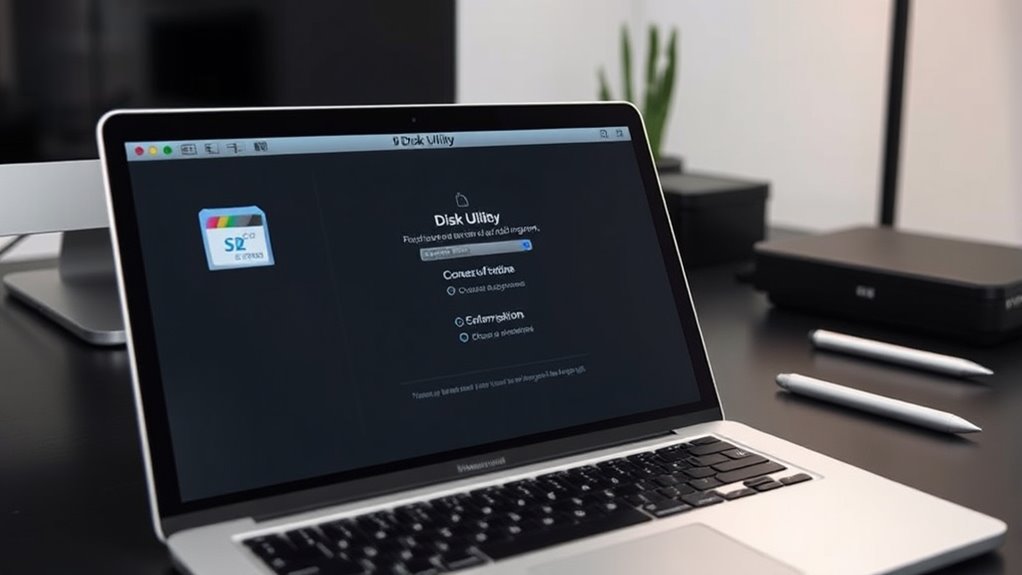
To properly format your SD card on a Mac, you need to mount it using a card reader or the built-in slot. Once mounted, download and install the SD Card Formatter tool from the official website. Open the application, and select your SD card from the list. Choose the overwrite format option to guarantee a thorough erase, avoiding quick format. Follow the on-screen instructions to complete the process. This method guarantees that your card is fully wiped and formatted correctly, preventing compatibility issues with your dash cam. After formatting, eject the card safely before reinserting it into your dash cam. Regular formatting with this method keeps your SD card in prime condition, reducing errors and ensuring smooth recording performance. Additionally, maintaining well‑designed and comfortable living spaces can help you better manage your tech accessories and storage solutions. Proper formatting also helps prevent data corruption, which can be caused by improper removal or incomplete erasures, a common issue that can be mitigated by understanding storage management best practices. Paying attention to file system compatibility ensures that your device recognizes and properly reads the card, minimizing errors. Being aware of formatting mistakes and how to avoid them can further improve your device’s longevity and performance.
Best Practices for Maintaining a Healthy Dash Cam Storage

To keep your dash cam running smoothly, stick to a regular formatting schedule to prevent errors and file corruption. Using high-quality storage media helps guarantee reliability and longer lifespan for your recordings. Maintaining a consistent routine and choosing the right SD cards are key to avoiding issues and maximizing performance. Additionally, understanding the importance of net worth and financial independence can help you make informed choices about your device investments. Incorporating passive voice detection into your editing process can further enhance the clarity and professionalism of your recordings.
Regular Formatting Schedule
Maintaining a regular formatting schedule is essential for keeping your dash cam’s storage in ideal condition. It prevents file corruption, maintains smooth recording, and guarantees compatibility with your device. How often you format depends on usage, but a good rule is to do it every 2 to 4 weeks. Regular formatting clears old footage, reduces fragmentation, and prevents bad sectors that can cause errors. Use the table below to help plan your schedule:
| Usage Level | Formatting Frequency |
|---|---|
| Light (weekend trips) | Every 2-3 months |
| Moderate (daily commutes) | Every month |
| Heavy (constant recording) | Every 2 weeks |
| Critical (professional use) | Weekly |
Stick to your schedule for optimal performance and fewer errors.
Use Quality Storage Media
Choosing the right storage media plays a vital role in keeping your dash cam functioning reliably. High-quality SD cards are designed to handle continuous recording and frequent overwriting, reducing errors and corruption. To guarantee maximum performance, consider these tips:
- Use high-endurance SD cards specifically made for dash cams and surveillance devices.
- Select cards with a minimum capacity of 32GB to accommodate loop recording.
- Avoid cheap, low-quality cards that often fail prematurely or cause data corruption.
- Regularly check for signs of wear, and replace cards showing errors or slow write speeds.
Common Mistakes That Lead to Corrupted Footage

One of the most common causes of corrupted dash cam footage is removing or inserting the SD card while the device is still recording or powered on. Doing this interrupts data writing, which risks corrupting files or damaging the card’s file system. Never eject the card during recording sessions, and always turn off the dash cam first. Additionally, using low-quality or incompatible SD cards can cause errors, so choose high-endurance cards recommended for continuous recording. Forgetting to format the SD card regularly can lead to fragmentation and bad sectors, increasing the chance of file corruption. Also, avoid abrupt power losses or disconnecting the device unexpectedly. These mistakes disrupt the recording process and compromise footage integrity, making proper handling and routine formatting essential for reliable performance.
Tips for Choosing the Right SD Card for Your Dash Cam

Selecting the right SD card can substantially improve your dash cam’s reliability and recording quality. To guarantee peak performance, consider these key tips:
- Choose a high-endurance card designed for continuous writing and overwriting.
- Opt for at least 32GB capacity to avoid frequent formatting and to store more footage.
- Select a class 10 or UHS speed class (U3) card to guarantee fast write speeds necessary for high-resolution recording.
- Confirm compatibility with your dash cam model by checking manufacturer recommendations.
Frequently Asked Questions
Can I Recover Footage After Formatting My SD Card?
Yes, you can recover footage after formatting your SD card, but it depends on whether you’ve written new data over the deleted files. Stop using the card immediately to prevent overwriting. Use data recovery software like Recuva or Disk Drill on your computer to scan the card. If the files haven’t been overwritten, you might successfully retrieve your footage. Remember, success isn’t guaranteed, so act quickly.
What Signs Indicate My SD Card Needs Formatting?
You’ll know your SD card needs formatting if you notice frequent recording errors, corrupted files, or if the dash cam fails to recognize the card. Slow write speeds, frequent crashes, or missing footage are also signs. Additionally, if you see error messages like “write protection,” or if the card becomes unresponsive, it’s time to format. Regularly checking for these issues helps keep your footage safe and your dash cam functioning smoothly.
Is Quick Format Sufficient for Dash Cam SD Cards?
Quick format isn’t enough for dash cam SD cards because it only erases the file system, leaving fragmented data and potential errors behind. To guarantee your card stays reliable, you should perform a full overwrite format, either on your computer or through your dash cam’s settings. This process removes all old files and minimizes the risk of corruption, helping your dash cam record smoothly and consistently.
How Does Formatting Impact Dash Cam Warranty?
Formatting your SD card properly typically doesn’t impact your dash cam warranty, as long as you follow the manufacturer’s guidelines. If you use recommended formatting methods, like full format instead of quick format, you won’t void your warranty. However, repeatedly damaging or mishandling the card during formatting might cause issues. Always keep records of your formatting process and use approved tools to guarantee your warranty stays intact.
Can Using Incompatible SD Cards Cause Footage Corruption?
Using incompatible SD cards can definitely cause footage corruption. When you insert a card that isn’t supported or isn’t designed for continuous writing, your dash cam struggles to record properly. This can lead to file errors, data loss, or corrupted footage. To avoid this, always choose high-quality, recommended cards, and make certain they meet your dash cam’s specifications. Regularly check for signs of corruption and replace incompatible cards promptly.
Conclusion
Regularly formatting your dash cam’s SD card is key to avoiding footage corruption and ensuring reliable recordings. Did you know that SD cards can develop errors after just 20 hours of use? By following proper formatting routines and choosing the right card, you’ll keep your footage safe and your dash cam running smoothly. Stay proactive, avoid common mistakes, and your recordings will always be ready when you need them most.