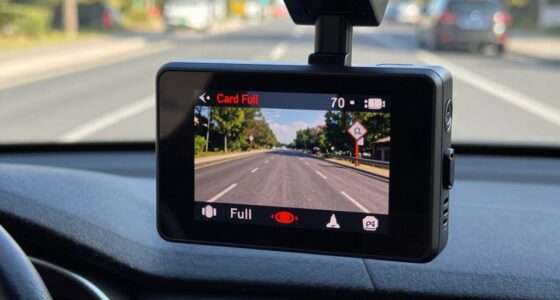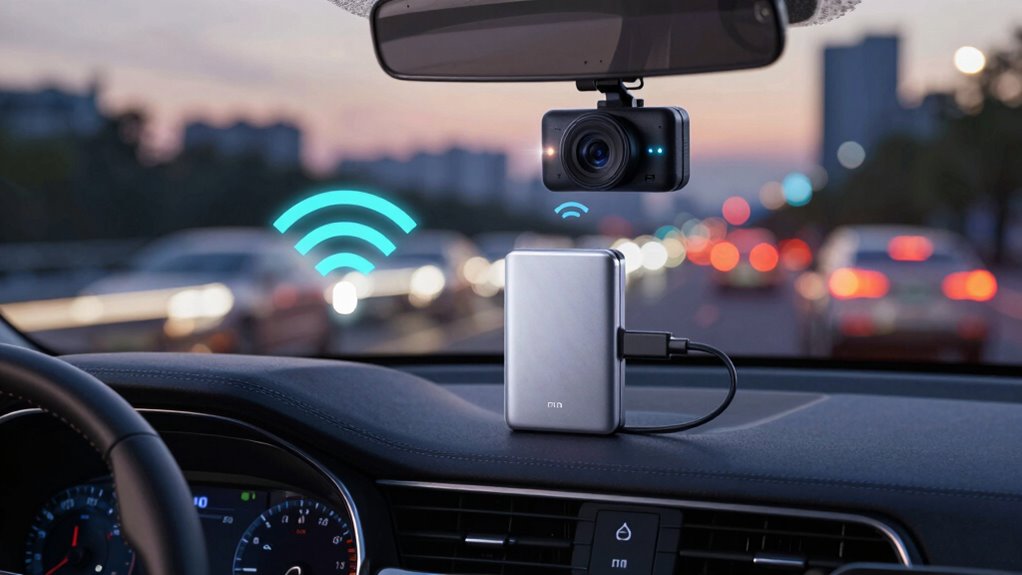
Wi-Fi transfers from dash cams are often slow because wireless signals face interference, limited bandwidth, and large video files take time to upload. Poor signal strength and Wi-Fi standards also affect speed, while cloud uploads depend on your internet speed. For faster transfers, using a wired connection or removing the SD card to connect directly to your computer works much quicker. Keep exploring to discover more tips for speeding up your footage transfers.

Get business pricing on garage and car supplies
- Business-only prices and quantity discounts
- Tax-exempt purchasing
- Multiple users, one account, clear invoices
Key Takeaways
- Wireless transfer speeds are limited by Wi-Fi standards, interference, and signal strength issues.
- Large, high-resolution videos take longer to upload over Wi-Fi, slowing transfer times.
- Cloud uploads depend on slow internet upload speeds, causing delays.
- Wired connections like USB or direct SD card transfer provide significantly faster data transfer.
- Improving Wi-Fi signal quality and avoiding interference can help optimize wireless transfer speeds.
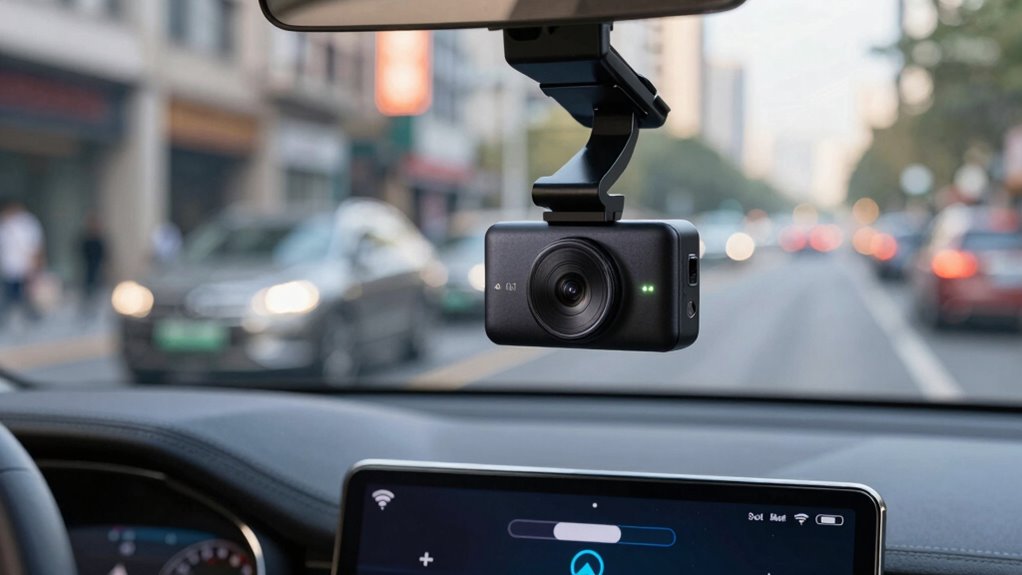
Having a dash cam with Wi-Fi transfer capabilities makes it easier to access and share your footage instantly. You don’t need to remove the SD card or hook up a cable; instead, you can connect directly to your camera’s Wi-Fi network and transfer videos on the spot. This convenience is especially useful if you want quick access to footage after an incident or need to upload clips to social media or cloud storage services. However, despite the promise of instant transfers, many Wi-Fi-enabled dash cams are surprisingly slow. The reason lies in the limitations of the wireless connection itself. Wi-Fi transfers can be hampered by interference, signal strength, and the size of the files you’re trying to move. High-resolution videos, which are common in dash cams today, can take a long time to upload over Wi-Fi, especially if your network isn’t ideal. This delay can frustrate you when you’re in a hurry or need footage urgently.
One common frustration is that the transfer process can seem to crawl, sometimes taking several minutes for just a few minutes of footage. This slow speed is often due to the way data is transmitted over Wi-Fi, which isn’t always optimized for large files. While some dash cams attempt to speed things up with faster Wi-Fi standards, the reality is that transfer speeds often still fall short of expectations. Plus, if you’re using cloud storage to back up your footage, the process involves uploading your clips to remote servers, which can be even slower depending on your internet upload speed. Cloud storage offers the advantage of off-site backups and easy access from multiple devices, but it can be hampered by slow upload speeds, especially during peak hours. Improving your wireless network performance can sometimes help mitigate these issues. Additionally, factors like signal interference can further limit transfer speeds, making quick sharing even more challenging. A strong, stable Wi-Fi connection is essential for minimizing transfer delays, especially with large video files.
Another aspect to consider is data encryption. Many dash cams utilize encryption to protect your footage during transfer, especially when connecting to cloud storage services. While this is a smart security feature, it can add to transfer times because the data needs to be encrypted and decrypted, which takes processing power and time. If you’re seeking a faster alternative, a wired connection like USB or direct SD card transfer often provides much higher speeds. Removing the SD card and plugging it directly into your computer is typically faster, and some dash cams support fast transfer protocols that considerably cut down waiting time. This way, you get your footage quickly without the delays caused by wireless interference or encryption overhead. Understanding wireless transfer limitations can help you optimize your setup for better speeds.
As an affiliate, we earn on qualifying purchases.
Frequently Asked Questions
Do All Dash Cams Support Wi-Fi Transfer?
Not all dash cams support Wi-Fi transfer. If your camera has Wi-Fi, it can quickly send high-resolution videos, but this often causes increased battery drain. Cheaper models usually lack Wi-Fi, so you’ll need to remove the SD card to transfer videos, which can be slow. For faster transfers without draining your battery, consider using a wired connection or a dash cam with a built-in Wi-Fi that’s optimized for quick data transfer.
How Secure Are Wi-Fi Transfers From Dash Cams?
Wi-Fi transfers from dash cams can be fairly secure if they use strong encryption protocols like WPA2 or WPA3, which protect your footage from unauthorized access. However, privacy concerns still exist, especially if the network isn’t secured properly or if sensitive footage is transmitted over public Wi-Fi. To keep your data safe, always make certain your dash cam uses robust encryption, and avoid transferring footage over insecure networks.
Can Wi-Fi Transfer Work While Driving?
Yes, Wi-Fi transfer can work while you’re driving, but don’t expect it to be smooth sailing. Wireless interference from other devices and signals can cause it to slow down or drop out like a thunderstorm. Plus, it drains your dash cam’s battery faster than a jet engine, making your setup less efficient. For seamless, quick transfers, it’s best to pull over and connect via a wired method.
What Devices Are Compatible With Dash Cam Wi-Fi Transfers?
You can use smartphones, tablets, and laptops that support Wi-Fi to transfer dash cam videos. These devices are compatible with dash cam Wi-Fi transfers, especially when utilizing cloud storage options. Keep in mind, video compression during transfer can affect quality and speed. To get faster results, consider using a dedicated SD card reader or a direct USB connection, bypassing Wi-Fi slowdowns.
How Much Data Do Wi-Fi Transfers Typically Use?
Think of Wi-Fi transfers as a stream of water, where a typical dash cam uses about 500MB to 2GB per hour. This flow can quickly flood your cloud storage if unchecked. Data encryption acts like a secure dam, protecting your footage from leaks. To save on data, consider transferring only essential clips, or upgrade your plan to handle larger flows without delays, ensuring your footage stays safe and accessible.
high-speed dash cam transfer cable
As an affiliate, we earn on qualifying purchases.
As an affiliate, we earn on qualifying purchases.
Conclusion
So, next time your dash cam Wi-Fi feels slower than a snail on a treadmill, remember there’s a faster way. Instead of waiting ages for those video clips to transfer, grab a USB cable or use a memory card reader — it’s like switching from a tricycle to a rocket! You’ll save time, frustration, and keep your adventures flowing smoothly. Don’t let slow Wi-Fi turn your quick drives into epic sagas—upgrade your transfer game now!
As an affiliate, we earn on qualifying purchases.
dash cam with fast data transfer
As an affiliate, we earn on qualifying purchases.
As an affiliate, we earn on qualifying purchases.
Halloween Picks
halloween
As an affiliate, we earn on qualifying purchases.