To fix clipping, muffled sound, and cabin echo on your dash cam, start by adjusting compression settings or switching to a better audio codec to improve clarity and reduce distortion. Make sure your microphone isn’t blocked or too far from the sound source, and consider adding an external mic if needed. Keep environmental noise and wind in check with proper setup and settings. For more detailed tips, you’ll find helpful steps that can transform your audio quality.
Key Takeaways
- Adjust compression settings or use efficient codecs to reduce audio clipping and improve sound clarity.
- Reposition or upgrade to an external microphone placed closer to voices to minimize muffling.
- Enable noise reduction and wind filters in your dash cam’s audio settings for clearer cabin sound.
- Keep the microphone unobstructed from dirt, glare, or accessories to ensure better audio capture.
- Use interior microphones designed for cabin audio to reduce echoes and enhance voice intelligibility.
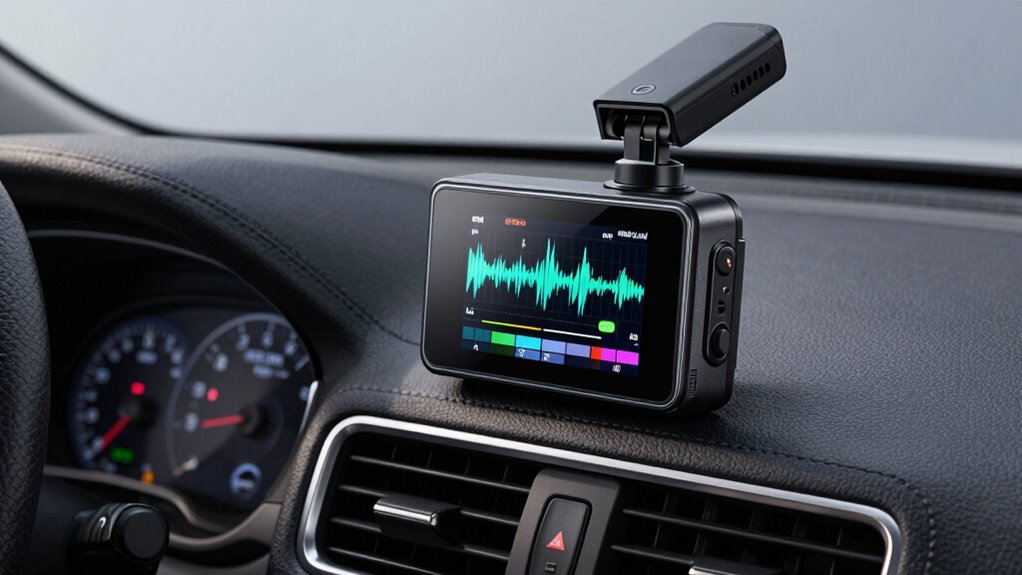
Have you ever wondered what your dash cam captures beyond just video? The answer often includes audio — sometimes surprisingly clear, other times frustratingly muffled or distorted. If you’ve noticed issues like clipping, muffled sound, or echo in your recordings, understanding the basics of dash cam audio can help you improve your setup. One key aspect is how audio compression affects sound quality. Many dash cams use compression algorithms to reduce file size, but this can sometimes cause clipping, where loud sounds get cut off or distorted, and reduce overall audio clarity. High compression rates can also make voice recordings sound muffled or less detailed. To get better audio, you might want to adjust your dash cam’s compression settings or choose a model with more efficient audio codecs.
Adjusting dash cam compression and microphone placement can significantly improve audio clarity and reduce distortion.
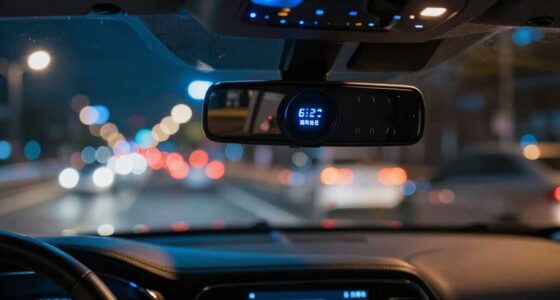
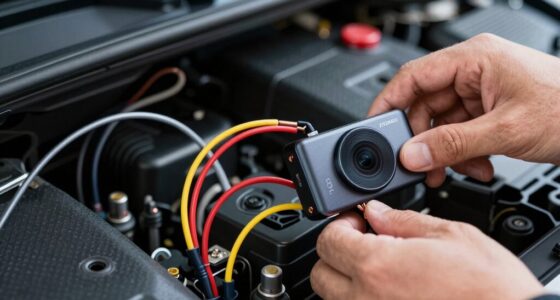
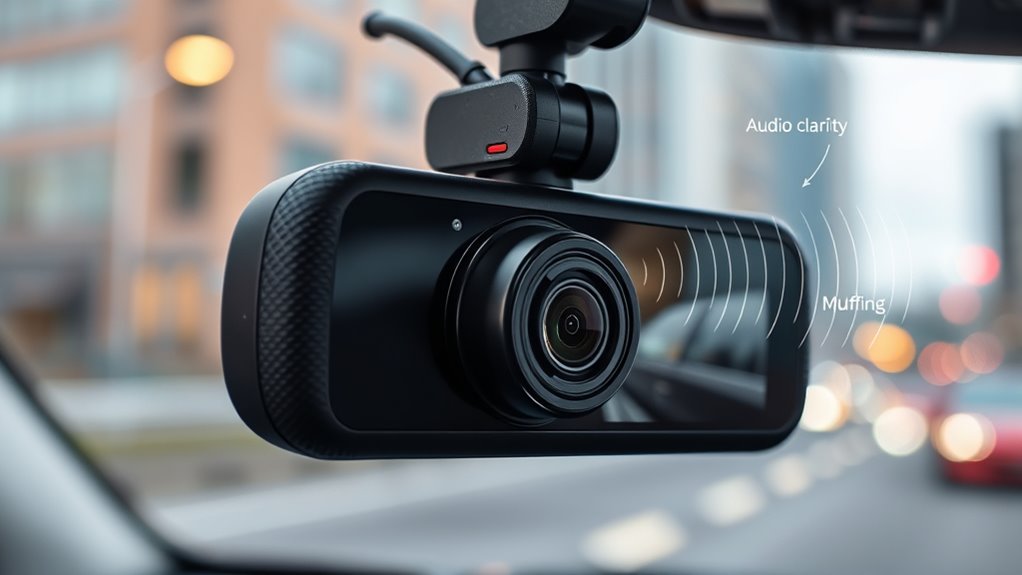
Another critical factor is microphone placement. The position of the microphone substantially impacts sound quality. If the mic is tucked away or placed too far from the driver or passengers, you’ll notice a decline in audio clarity. Some dash cams have built-in microphones located near the front or on the lens assembly, which might pick up more wind noise or external sounds rather than voices inside the cabin. If you’re experiencing muffled sound, consider repositioning or upgrading your dash cam with a better-placed microphone. For example, some models allow you to attach an external microphone closer to the conversation area or behind the windshield to capture clearer audio. Proper microphone placement minimizes environmental noise and helps record voices with greater fidelity, reducing the need for post-recording editing. Additionally, understanding audio compression can help you select a device that balances file size with sound quality effectively.
Beyond placement, the way you set up your dash cam influences audio quality. Ensuring the mic isn’t obstructed by glare, dirt, or accessories can make a difference. You should also check if your device has settings for audio sensitivity, noise reduction, or wind filtering. Adjusting these settings can prevent echoes and reduce ambient noise, which often causes muffled or distant-sounding recordings. For cabin recordings, choosing a dash cam with a dedicated microphone designed for interior audio can make a big difference.
Ultimately, improving dash cam audio involves a combination of understanding audio compression effects and optimizing microphone placement. When you pay attention to these details, your recordings will capture conversations and sounds more accurately, making your footage more useful in the event of an incident. Clearer audio can provide vital context, and by making small adjustments, you ensure your dash cam isn’t just a visual witness but also an audio recorder with sharp, intelligible sound.
Frequently Asked Questions
Can External Microphones Improve Dash Cam Audio Quality?
Yes, external microphones can improve dash cam audio quality. Proper microphone placement is key; position it close to sound sources to reduce noise and enhance clarity. An external mic offers better audio enhancement by capturing clearer voices and minimizing cabin echo. With the right placement, you’ll notice improved sound quality, making your dash cam recordings more intelligible and reliable, especially in noisy or echo-prone environments.
How Does Weather Affect Dash Cam Audio Recording?
Did you know that heavy rain can reduce dash cam audio clarity by up to 30%? Weather interference like rain, snow, or wind directly impacts audio recording, making it harder to hear conversations or sounds inside your vehicle. These conditions increase road noise and create distortions, especially with open windows or vents. To improve audio quality, consider using weather-resistant microphones or adjusting your dash cam settings during adverse weather.
Are There Compatible Apps for Enhancing Dash Cam Sound?
Yes, there are compatible apps that help enhance dash cam sound by reducing background noise and improving voice clarity. You can try apps like Adobe Premiere Rush, Audacity, or Movavi, which offer voice enhancement features. These apps allow you to filter out background noise, fix muffled sounds, and clarify voices, making your dash cam audio clearer. Just connect your footage, apply the tools, and enjoy improved sound quality easily.
What Are Common Causes of Audio Delay in Recordings?
Imagine a tightrope walker balancing perfectly—audio delay happens when recording latency throws you off. Common causes include slow processing speeds, weak memory, or incompatible settings that disrupt audio synchronization. You might notice your sound lagging behind visuals, making playback feel off. To fix this, check your device’s performance, update firmware, or adjust recording settings. Staying mindful of these factors helps keep your recordings in harmony, just like the confident walk across the wire.
Is It Possible to Recover Deleted Audio Files?
Yes, you can recover deleted audio files. Use specialized audio recovery software to attempt deleted file restoration, as it scans your storage device for traces of erased data. Act quickly, because new data might overwrite the deleted files, making recovery impossible. Make sure to avoid saving new recordings to the same device until you’ve tried recovery. This increases your chances of successful audio recovery and restores your important recordings.
Conclusion
Now that you know how to fix clipping, muffled sound, and cabin echo, your dash cam audio will be clearer than ever. Think of it like tuning a musical instrument—you just need the right adjustments to hit every note perfectly. I once helped a friend improve his footage, and suddenly, every detail of his drive was crystal clear, like a well-played symphony. With these tips, your recordings will sound as sharp as they look.